Case Study 1
WFM Software Dashboard Redesign
… about redesigning the dashboard of a Workforce-Management Software by including User Roles, accessibility and adaptable and flexible components
In House
2025

Assist Digital
Overview
Product
Product
Product
Workforce-Management Software suited for Call Center Purposes
My Role
My Role
My Role
UX Strategy
UX Research
UX Design
UI Design
- short: UX Team of One!
Team
Team
Team
me, myself and I
Tools
Tools
Tools
Figma
FigJam

ChatGPT
Google
Docs
Pen+Paper
Methods
Methods
Methods
Exploration
User Stories
"How might we…" Statements
Problem Statement
User Journey
Ideation
Low-Fi Wireframes
Low-Fi Wireflow
Final Design
High-Fi Prototype
High-Fi Wireflow
Deliverables
Objective
Objective
Objective
This concept was created for a former employer:
For the upcoming major release of the software, the dashboard needed to be redesigned with a strong user-centered focus. The system was originally built solely for time tracking, and additional workforce-management features had been added gradually over time.
As a result, the existing dashboard still only reflected time-tracking functionality. Since not all user roles relied on this feature, the dashboard no longer aligned with the actual needs of its users. The goal of this project was to address this gap and transform the dashboard from merely functional to genuinely useful, ensuring that each user group received relevant, meaningful information at a glance.
Read about my detailed design process below.
Ready for a deeper look?
This case study includes long-form content, complex layouts, and detailed visuals that are best experienced on tablets or desktops.
On mobile, you’ll find the overview and a short walkthrough video — perfect for getting the big picture.
bigger device
bigger device
on a
and read this
to your eyes
to your eyes
Be nice
Be nice
Exploration
As outlined in the design brief, a major driver for the redesign was ensuring that the dashboard would meet the needs of all user roles. The extent to which this had not been the case so far became evident from the fact that users working with the autonomous shift distribution feature didn’t even access the dashboard at all — instead, they started with an alternative view after logging in.
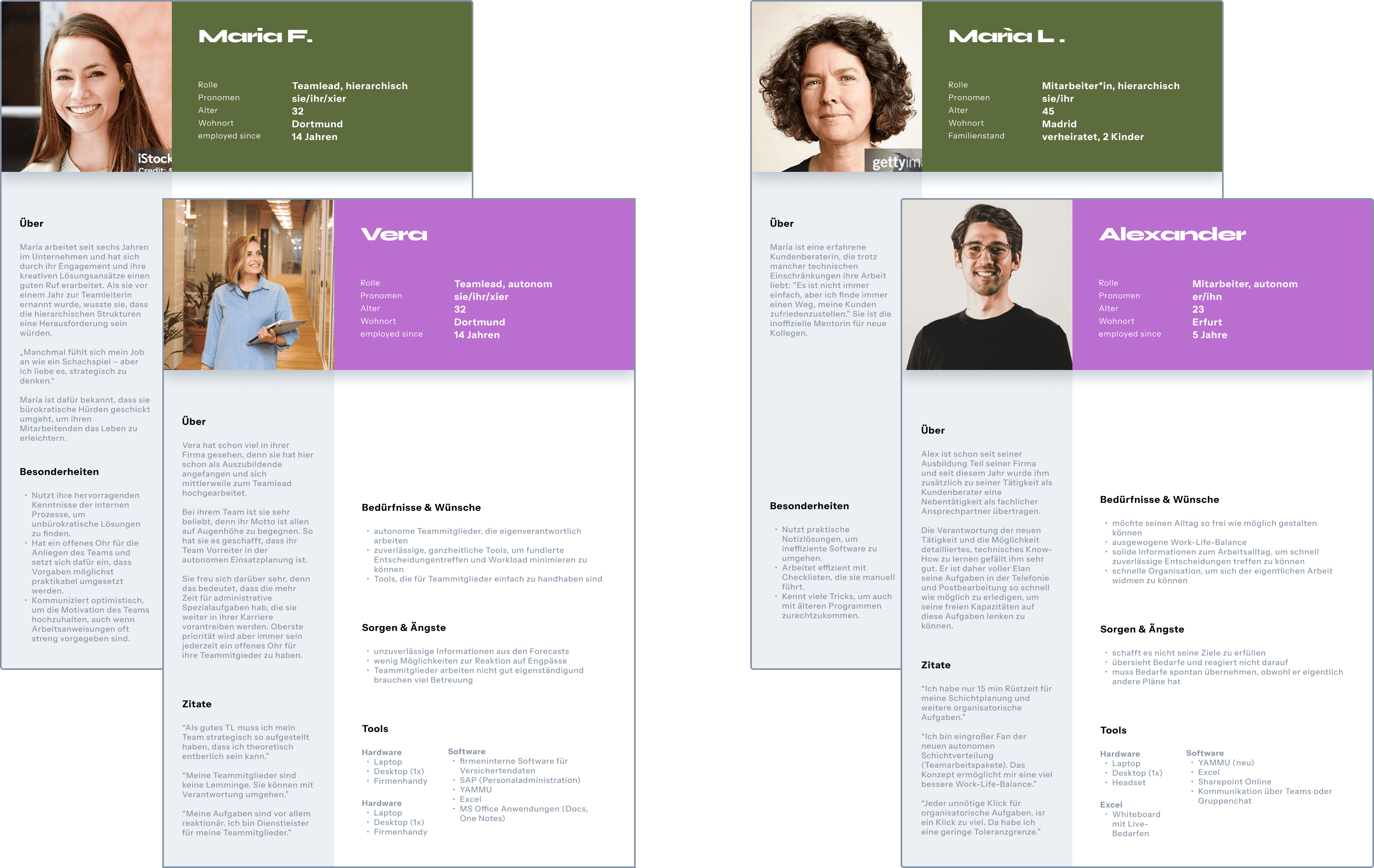
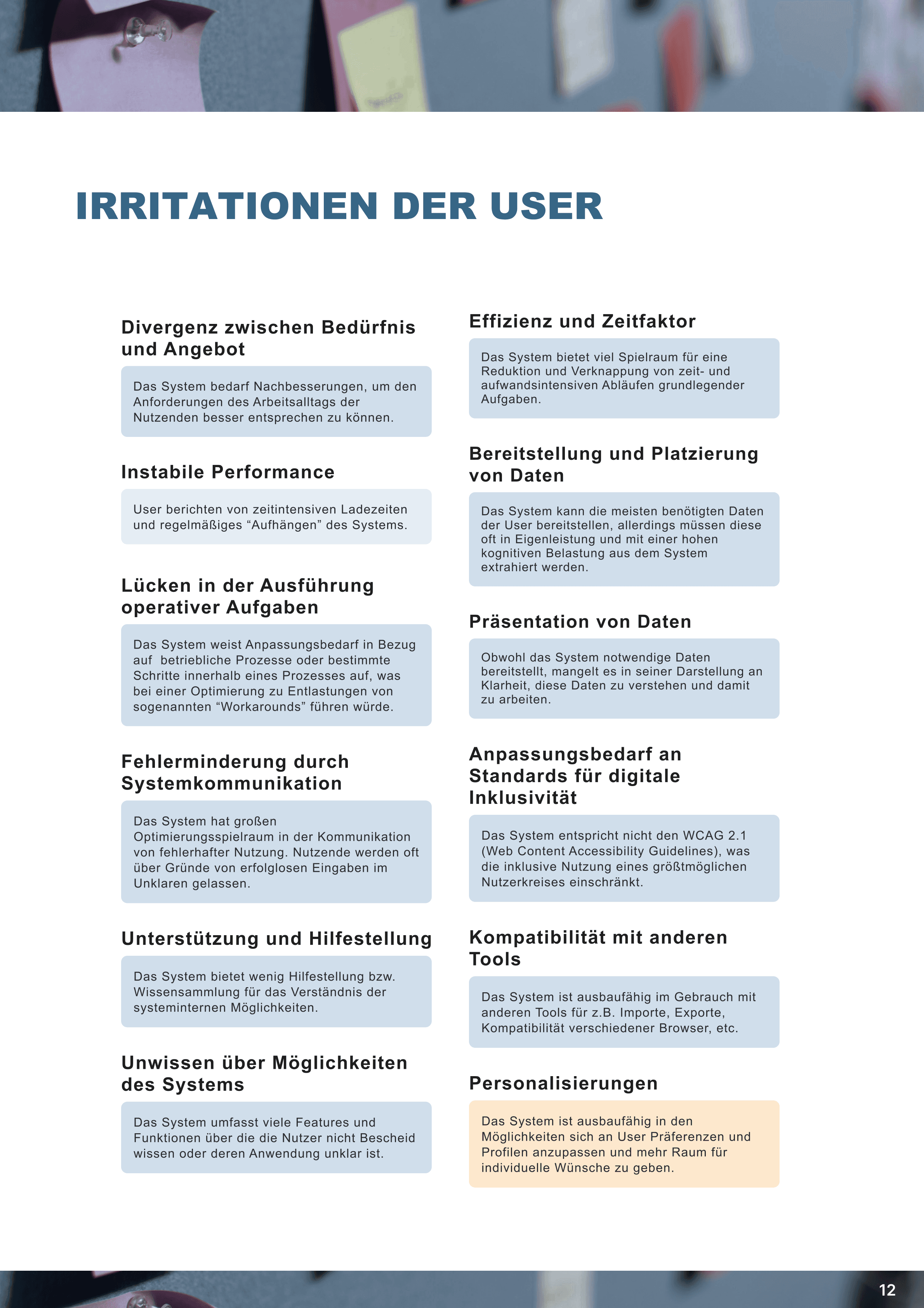
To refresh my understanding, I revisited the insights gathered in an earlier User Research campaign:
During this process, I noticed that the available information regarding the manager (WFM) role was still too superficial to derive meaningful design decisions from it. Since no additional user research was planned for this project cycle, I decided — in alignment with the Product Owner — to focus in this cycle on the employee (MA) and team lead (TL) roles.
Design Mantras
Visibility of System Status
“Keep users informed about what is going on, through appropriate feedback within a reasonable amount of time.”
Hick’s Law
“The time it takes to make a decision increases with the number and complexity of choices.”
Postel’s Law
“Be liberal in what you accept, and conservative in what you send.”
Design Thinking
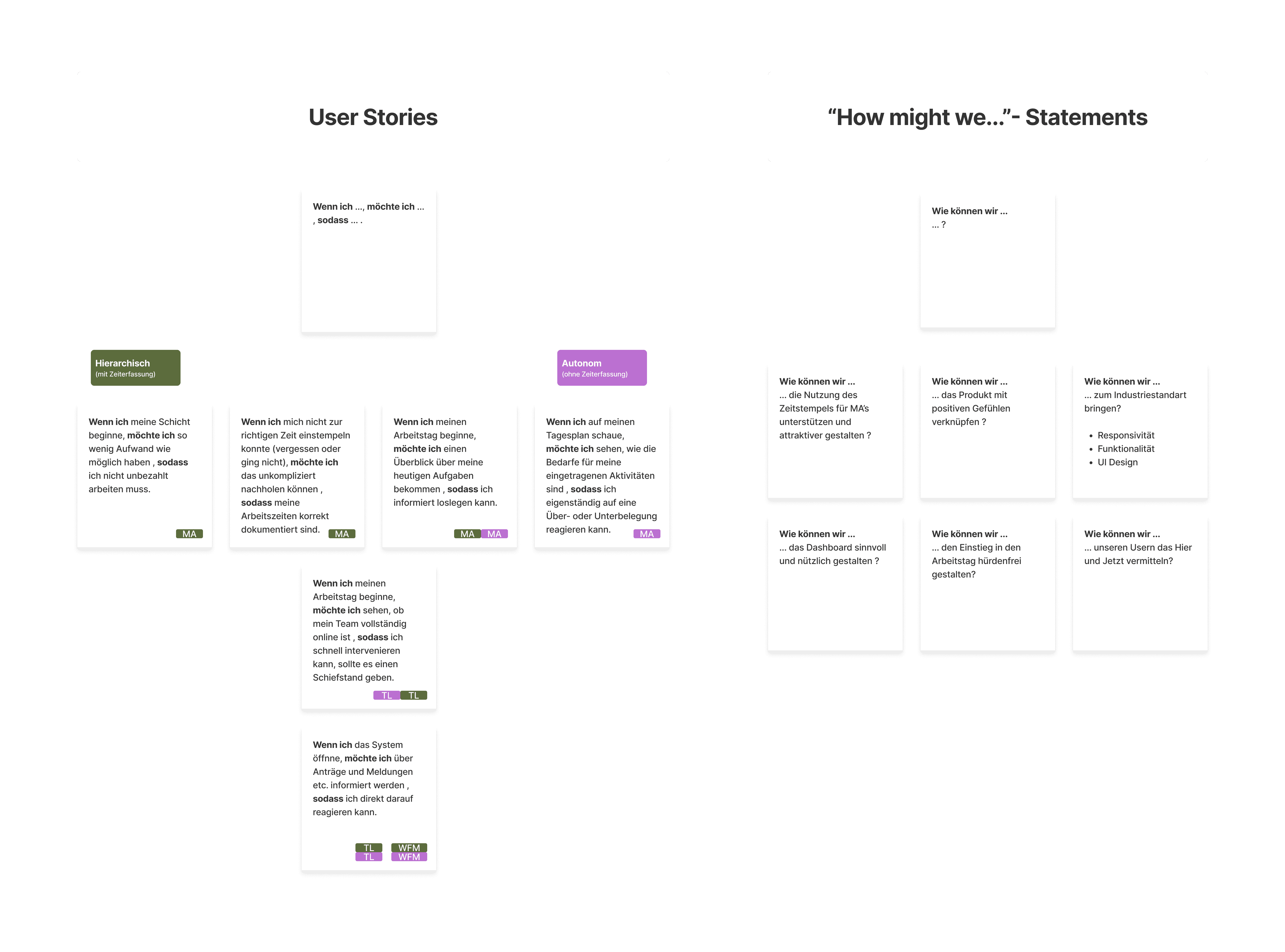
Using Design Thinking methods as
"User Stories" and "How might we..." statements led me to ask myself a few key questions:
?
What is a dashboard actually for?
!
A dashboard should provide a smooth and intuitive starting point for using the application.
?
How can a dashboard achieve that?
!
For workforce management, it needs to offer a clear overview of the here and now, helping employees and team leads navigate the tool more easily.
The phrase “here and now” turned out to be a big aha! moment for me — one that ultimately shaped my problem statement.
PROBLEM STATEMENT
How might we
redesign the Dashboard of the WFM-Software
so that
all user roles can quickly gain an overview of the "here and now"?
(hierarchical and autonomous employees and team leads)
We’ll know we’ve achieved this when
all users actually start their session with the dashboard.
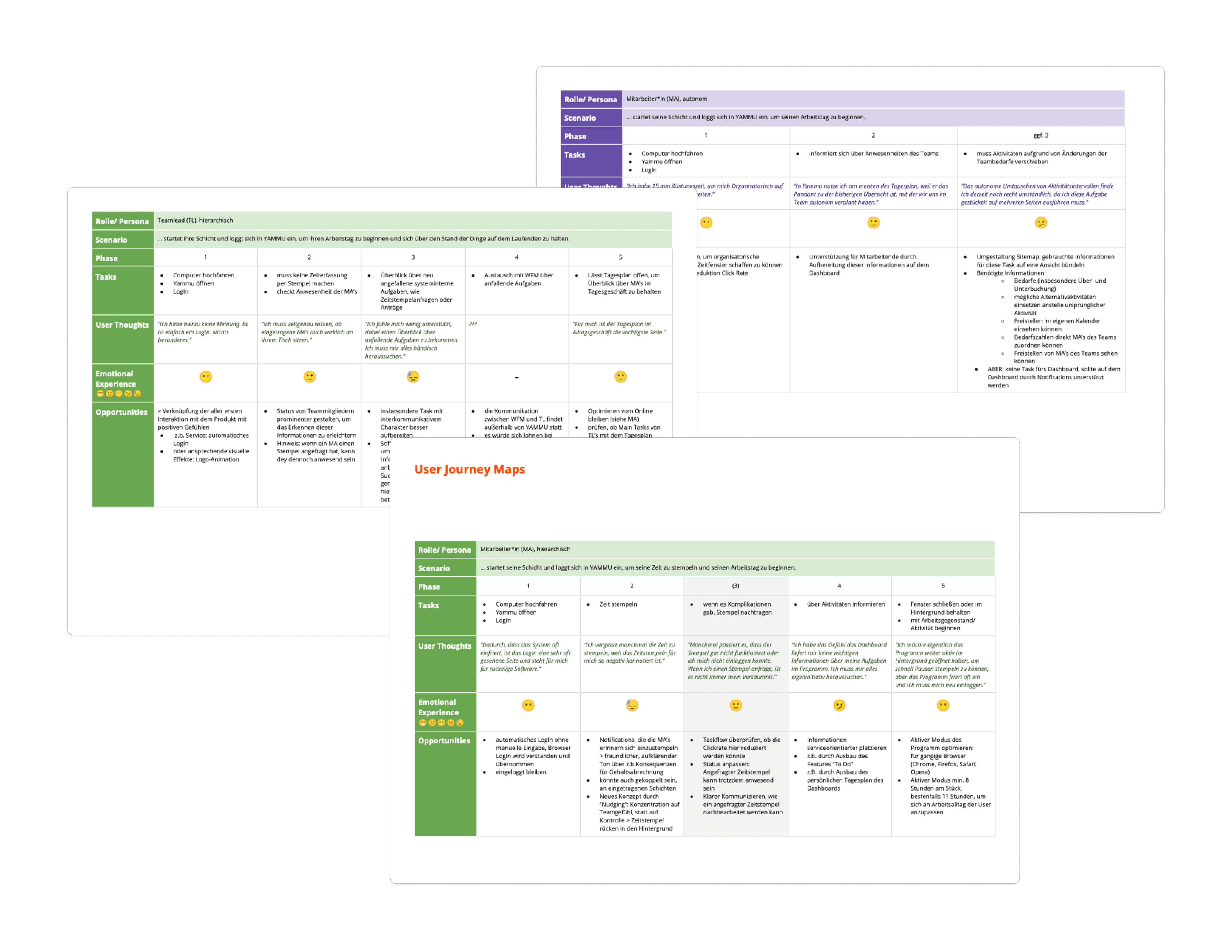
I concluded the exploration phase with user journeys. From that I gained the following starting points:
1
I noticed that a lot of potential for user satisfaction was being lost because key information wasn’t readily available — users had to actively search for it themselves.
2
Another major source of frustration was time stamping, which carried a negative connotation. As a result, it was often avoided, creating additional work for other user roles.
3
As the “Daily Plan” page was the most frequently used view among all teamleads as well as autonomous employees, it would be valuable to adopt some of its qualities for the new dashboard.
UX Design Process
There was quite a bit of work! Since we had two shift-distribution concepts and two user roles (employees and team leads), we needed to create four separate dashboard variants.
Dashboard Variant 1: Hierarchical Employee
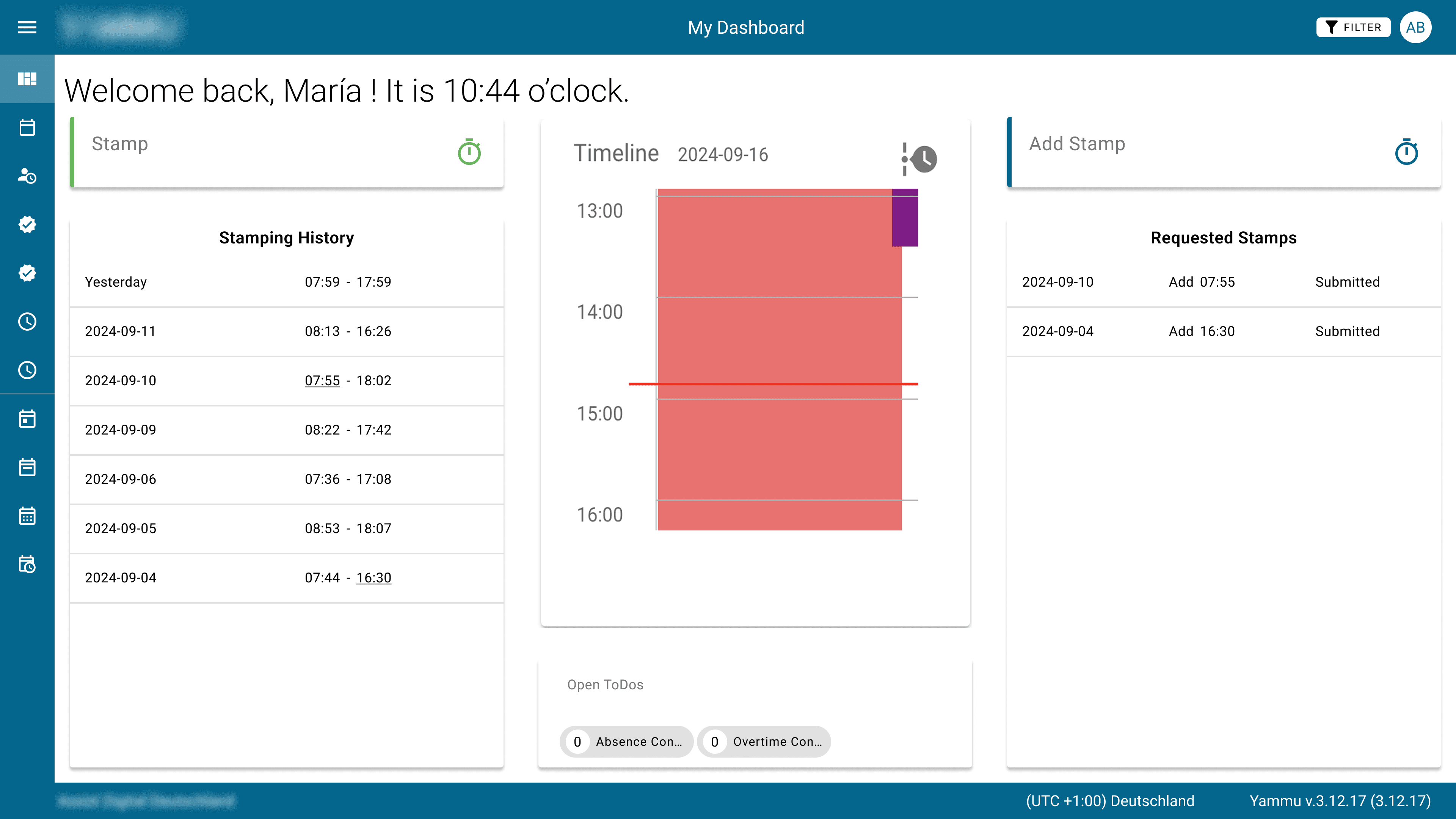
Let’s start with the version closest to the original application: the dashboard for employees in the hierarchical shift-distribution model. As a reminder, this user group recorded their working hours by clocking in and out within the system.
For this concept, I used my favorite tools — pen and paper. Still the best way to think (and even scientifically proven!). I also followed a mobile-first approach. Although the product had mainly been used on desktop so far, the user interviews clearly showed a demand for a mobile version. So it made perfect sense.
concept Decision
Idea 1
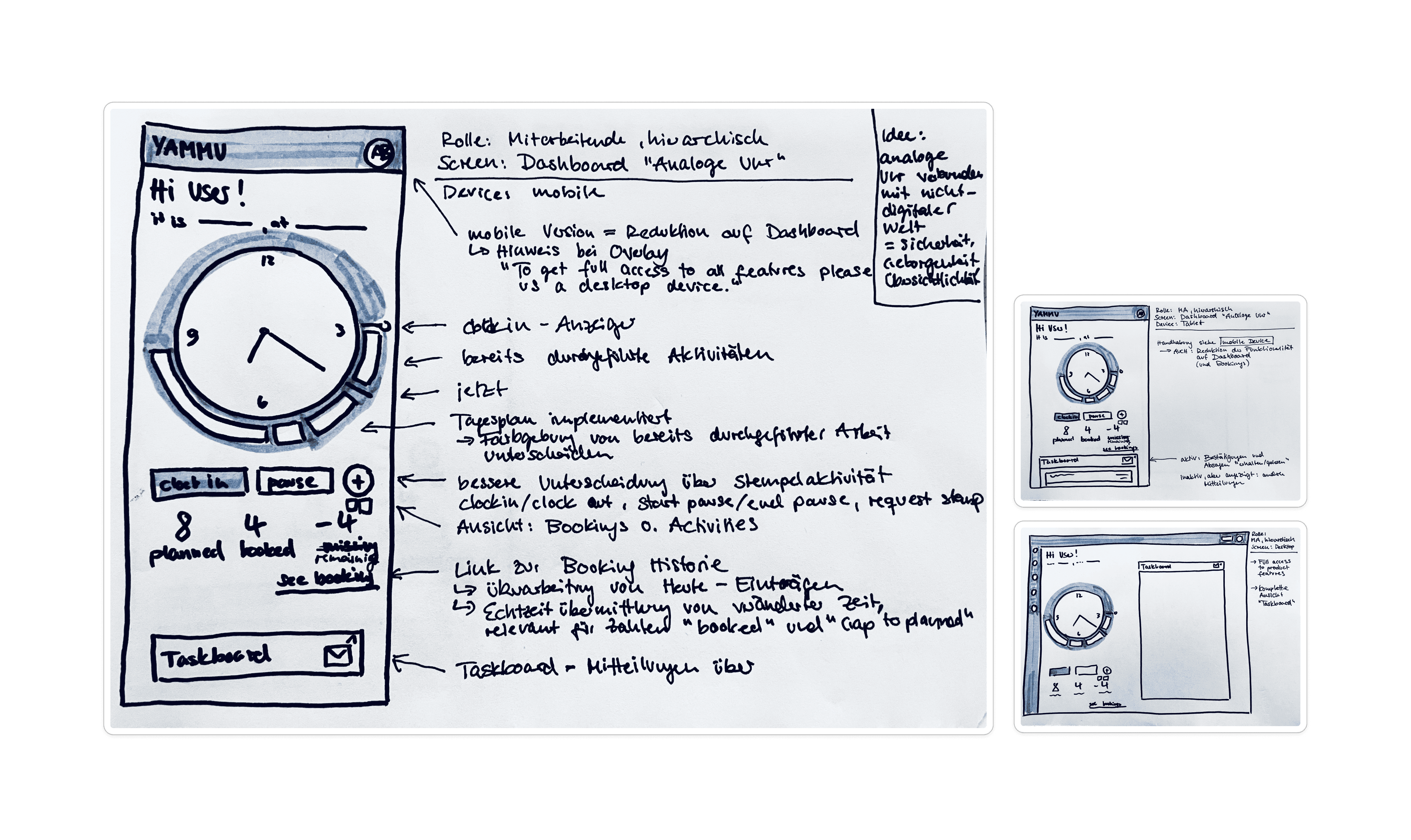
Using an analog clock and a visible redesign to send a clear signal to users: something is changing
Leveraging the analog display to create positive associations — in our fast-paced, high-efficiency world non-digital objects evoke familiarity, clarity, and a sense of comfort
Communication between development and design is still in its early stages — implementation carries a high risk of things going wrong
Vs
Idea 2
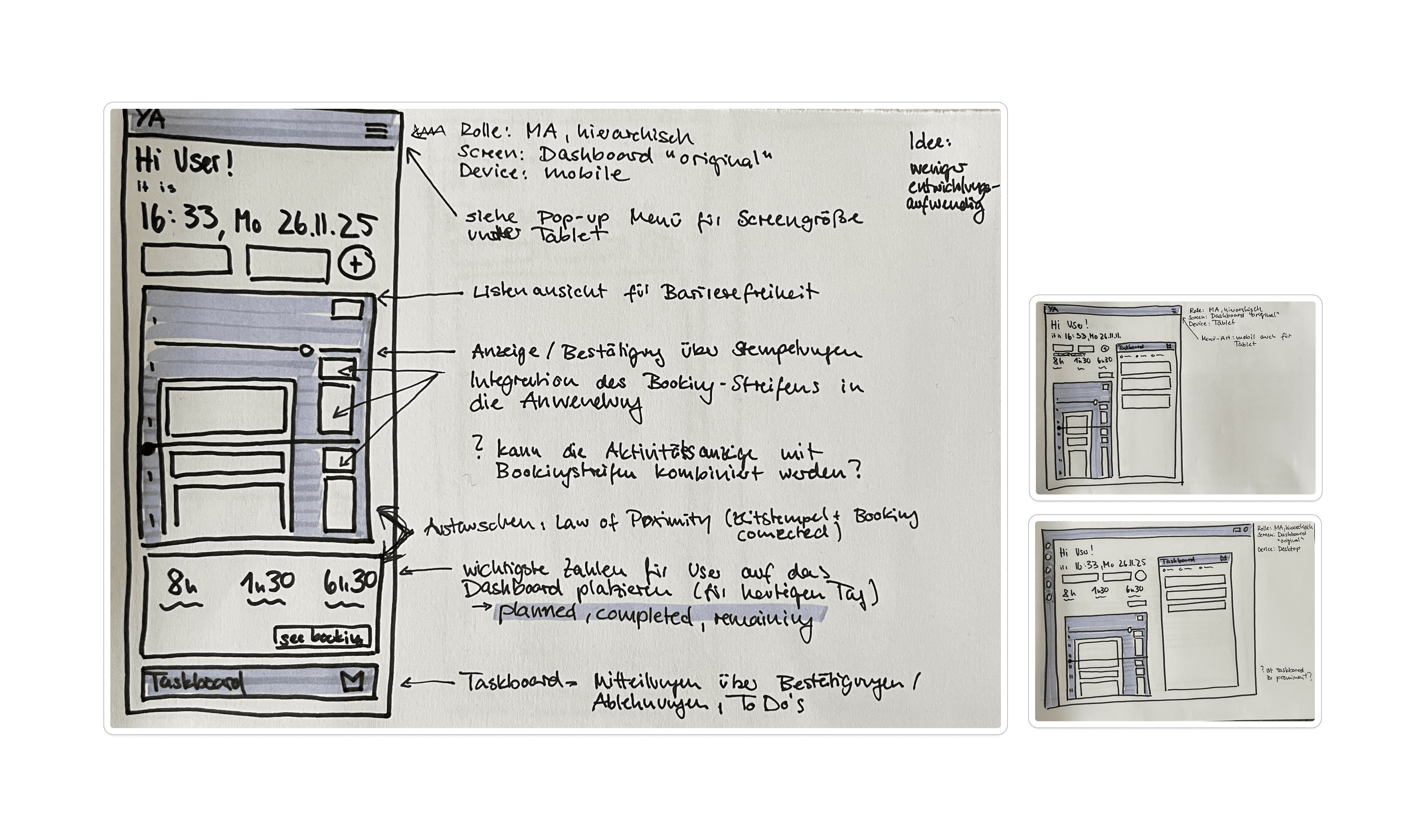
Largely retaining the original framework to support recognition for existing users
Reduction of development effort
Providing more structural components for communicating information
Less flexibility for visual design
Since implementation cost is a key factor, this strategy ultimately prevails
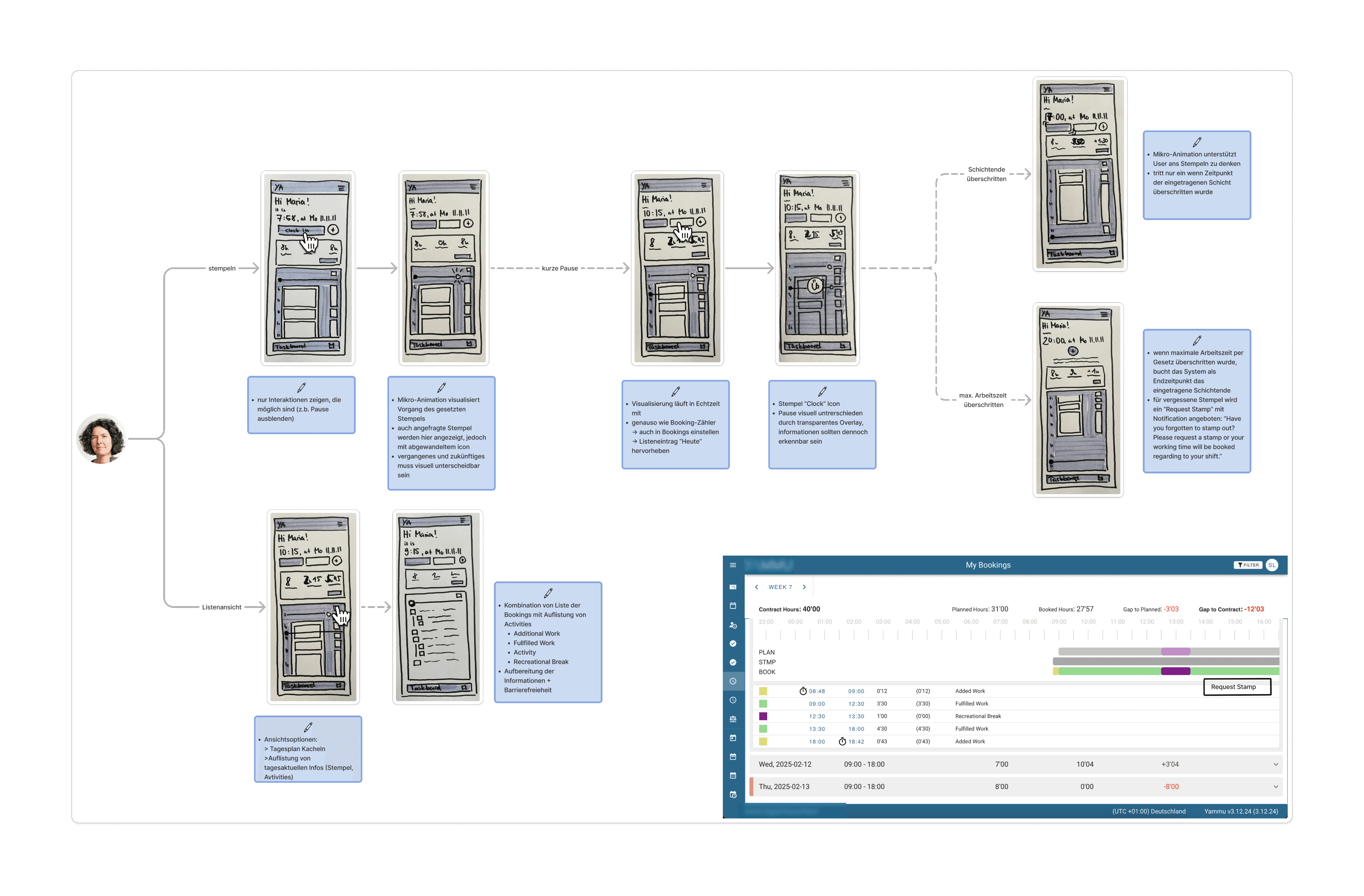
Via a Workflow I collected all ideated improvements in one overview.
Key Considerations
The clock-in process should reflect employees’ real workflows, so separating shift start, shift end, and breaks is essential.
User actions should be visible through micro-animations to support visibility of system status (e.g., a timestamp appearing in the daily view).
The system should support clocking in and out through gentle nudges, such as a bouncing button near shift start or end.
User-relevant shift information (planned, completed, remaining) should be clearly displayed.
The system architecture should connect related elements to ensure intuitive navigation.
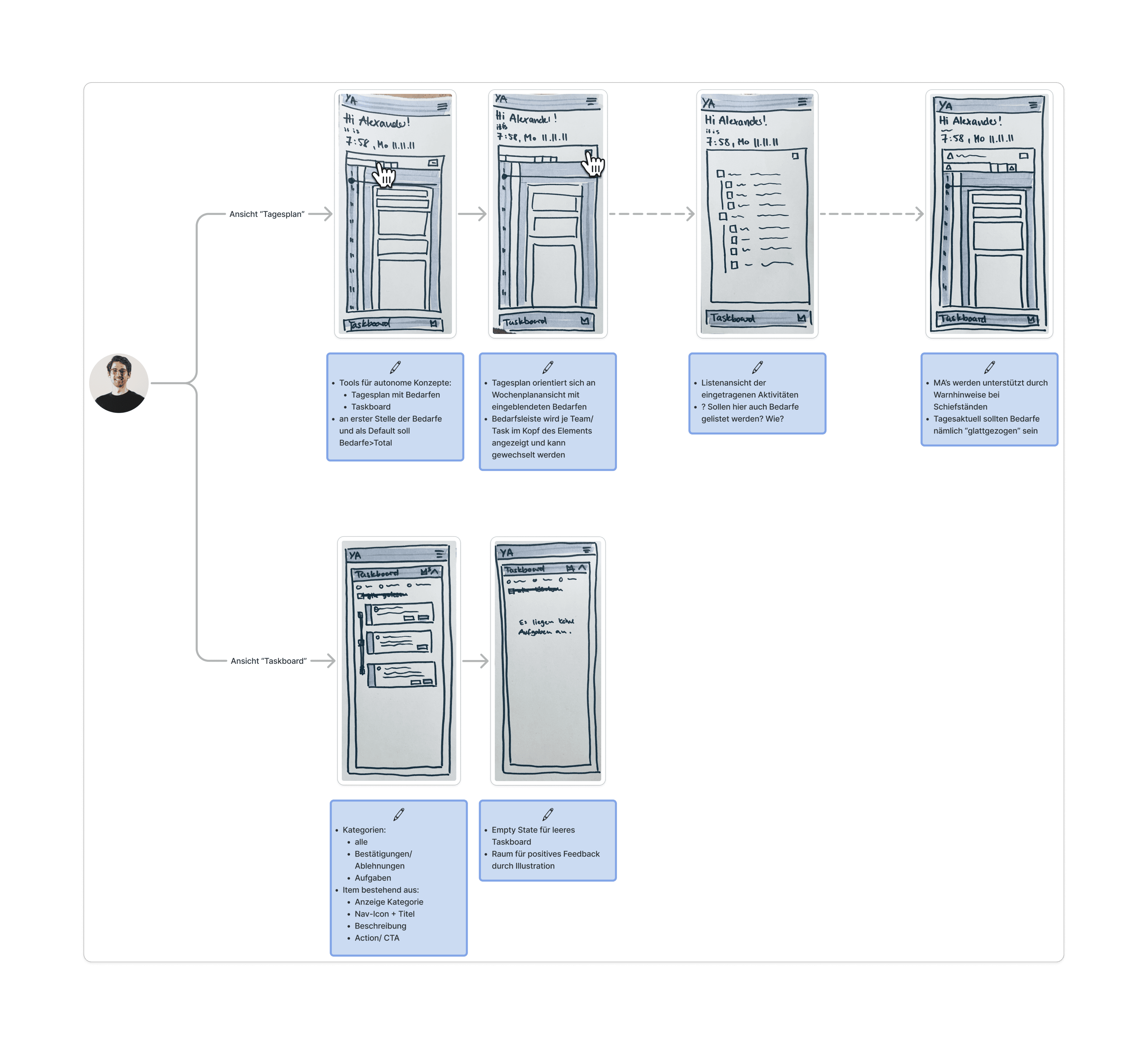
Dashboard Variant 2: Autonomous Employee
I then developed the dashboard for employees in the autonomous shift-distribution model. This user group did not record their working hours by clocking in or out. Instead, they used the system to access team-wide views for assigning shift intervals.
Key Considerations
Hiding all time-tracking elements
Iteration of "Internal Daily View":
Add today’s staffing needs so users can quickly and independently respond to shortages.
Ensure consistency by using existing view patterns already applied elsewhere in the system.
Provide an accessible display option for this element.
Present system-generated tasks in a structured way to increase efficiency and reduce the need for manual initiative via a task board
Dashboard Variant 3: Hierarchical Teamlead
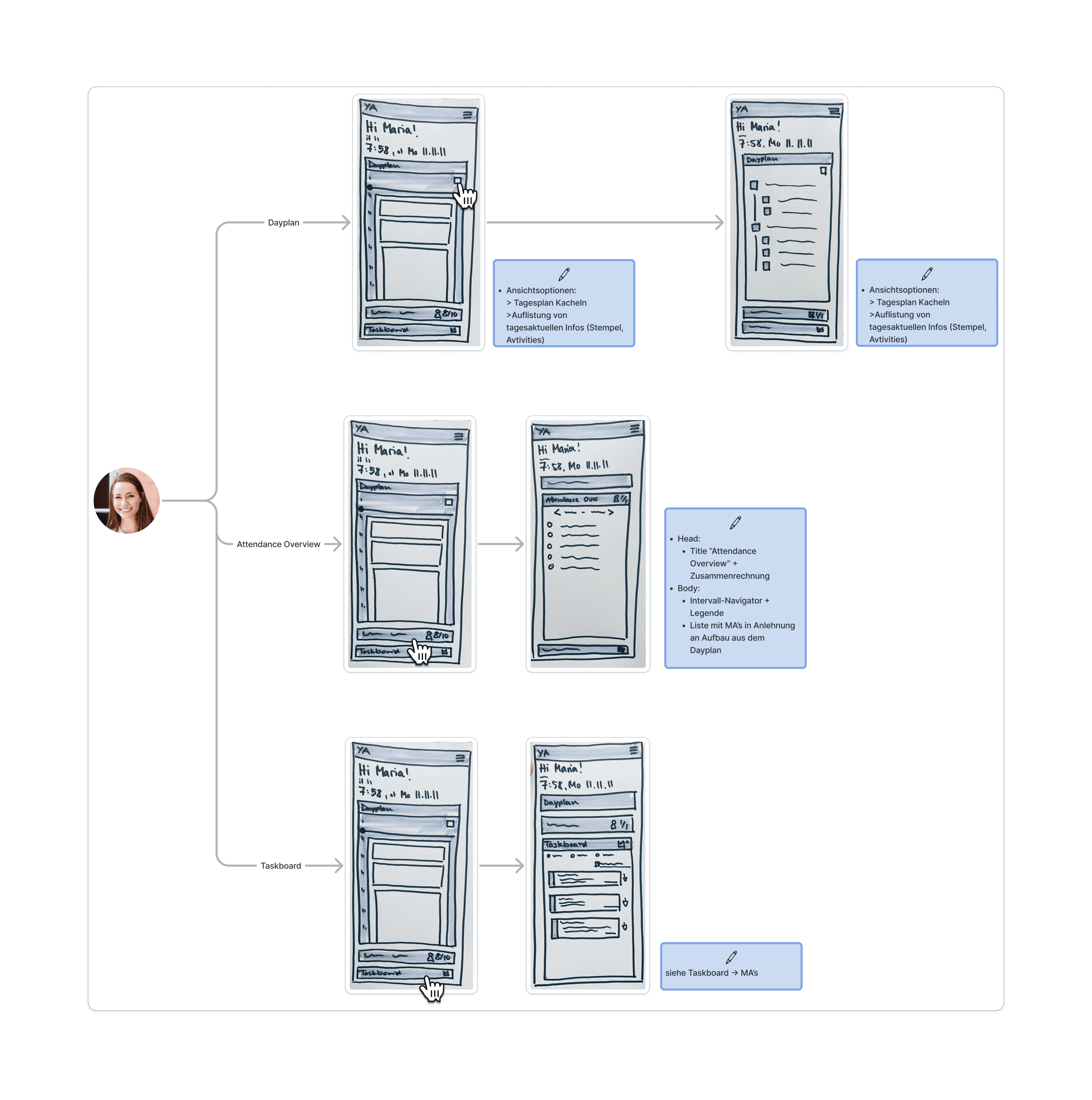
For teamleads, the iterations and development of entirely new elements represents a meaningful step forward, as they will finally have access to a useful dashboard. In the hierarchical shift-distribution model, team leads do not perform time tracking themselves. Their needs are primarily reactive and organizational.
Key Considerations
Developing an "Attendance Overview":
Provide a view of the team’s current attendance status
Reuse existing patterns from the daily view for visual consistency
Display attendance by time interval to reduce mental load
Dashboard Variant 4: Autonomous Teamlead
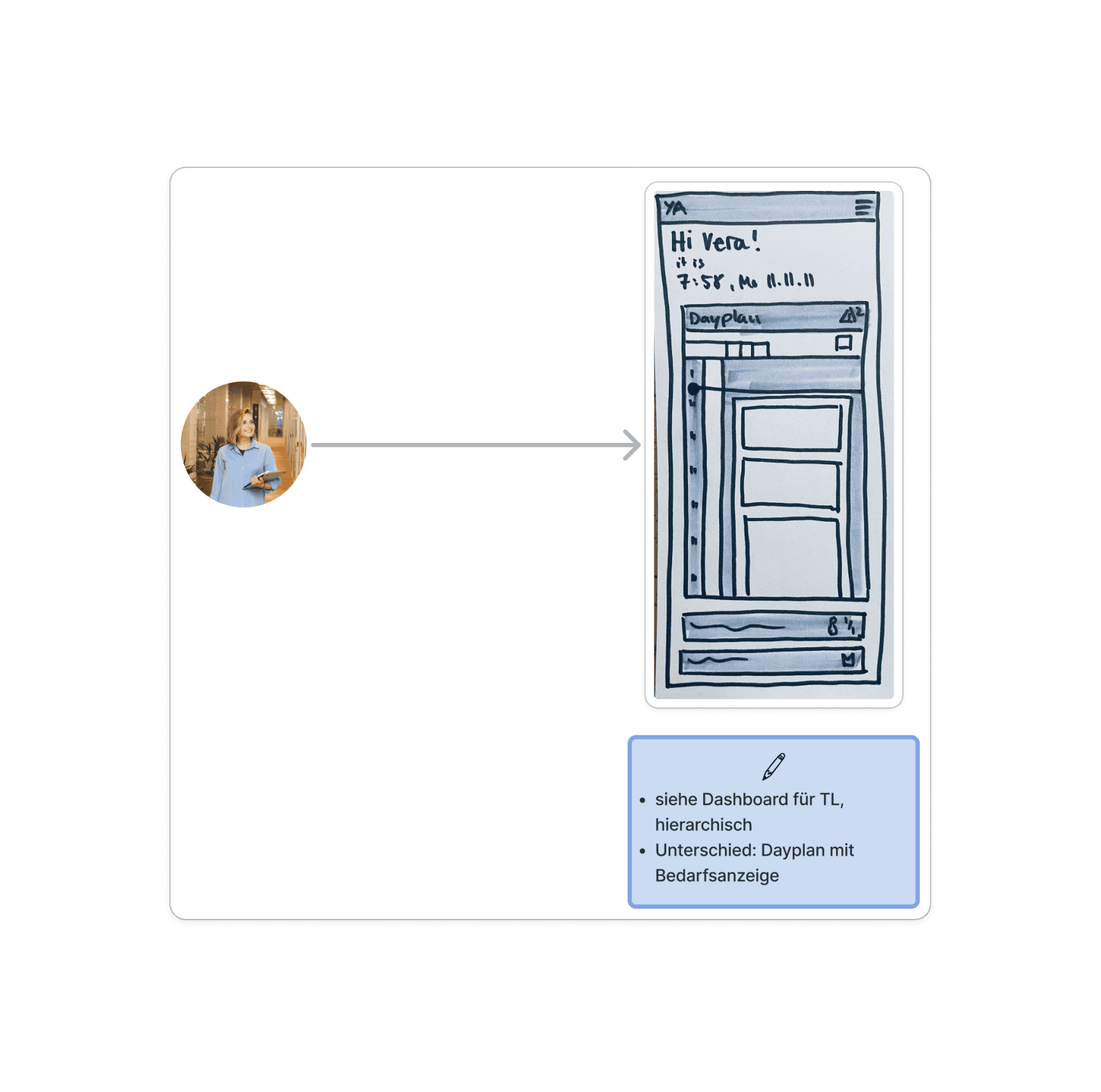
The dashboard needs of team leads in both the hierarchical and autonomous shift-distribution models were largely the same. Neither user group performs time tracking through clocking in. Both must be able to see team attendance at any given moment. Only team leads in the autonomous model additionally need insight into staffing needs, as these can shift throughout the day.
Key Considerations
Display staffing needs within the internal daily view
Final Design
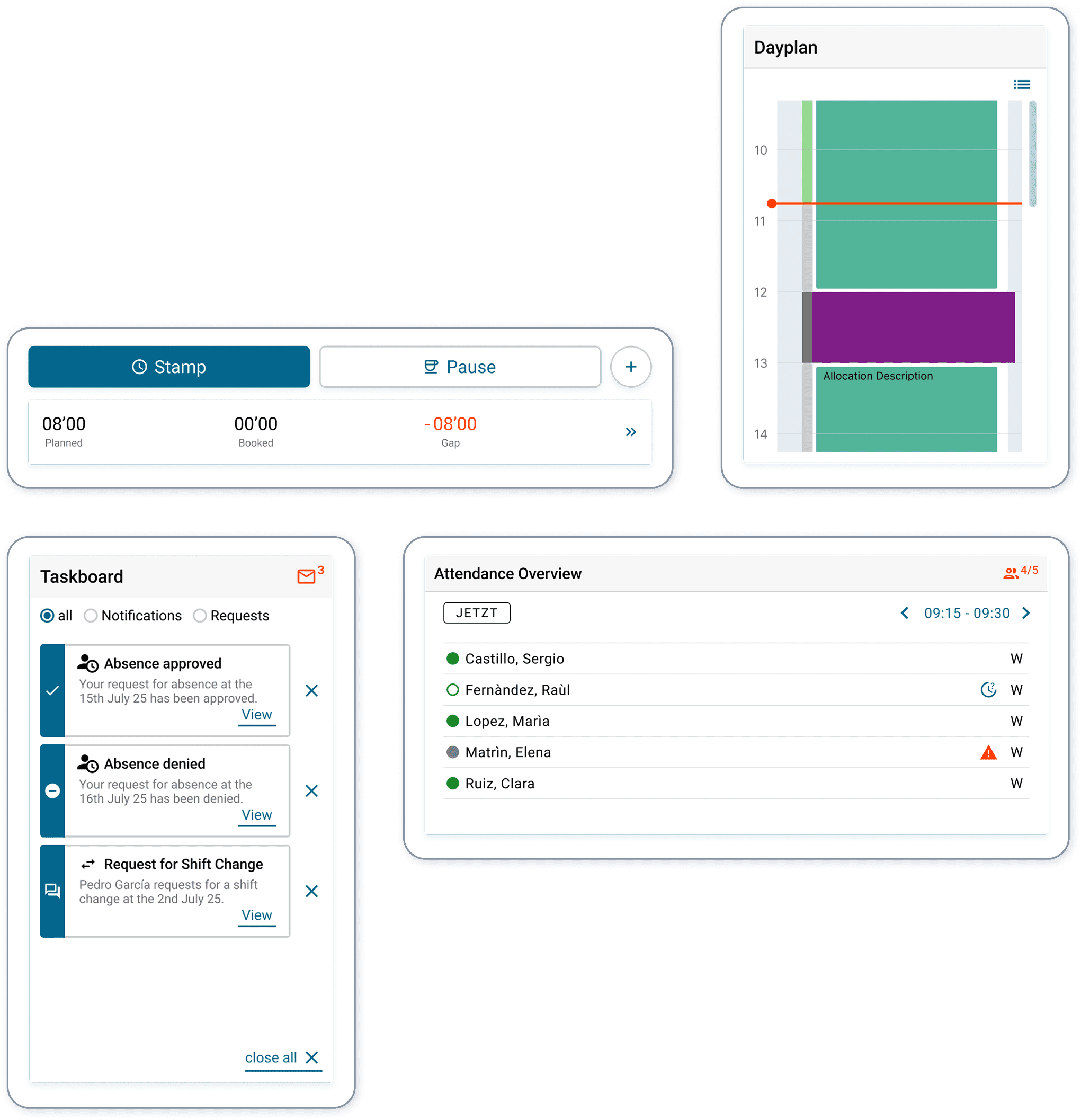
My ideation process led me to a solution that introduced four core interaction elements for the dashboard:
Time Tracking
Internal Daily View
Task Board
Attendance Overview
These elements could be shown or hidden depending on shift model and user role, each offering its own user-specific variation.
The major advantage of this approach was that it created a robust foundation for future iterations. Its layout served as an early form of a bento-grid structure, allowing the interface to remain flexible, responsive, and expandable. This makes it possible to add additional elements later on, supporting the need for personalization expressed in the user interviews.
Before
After
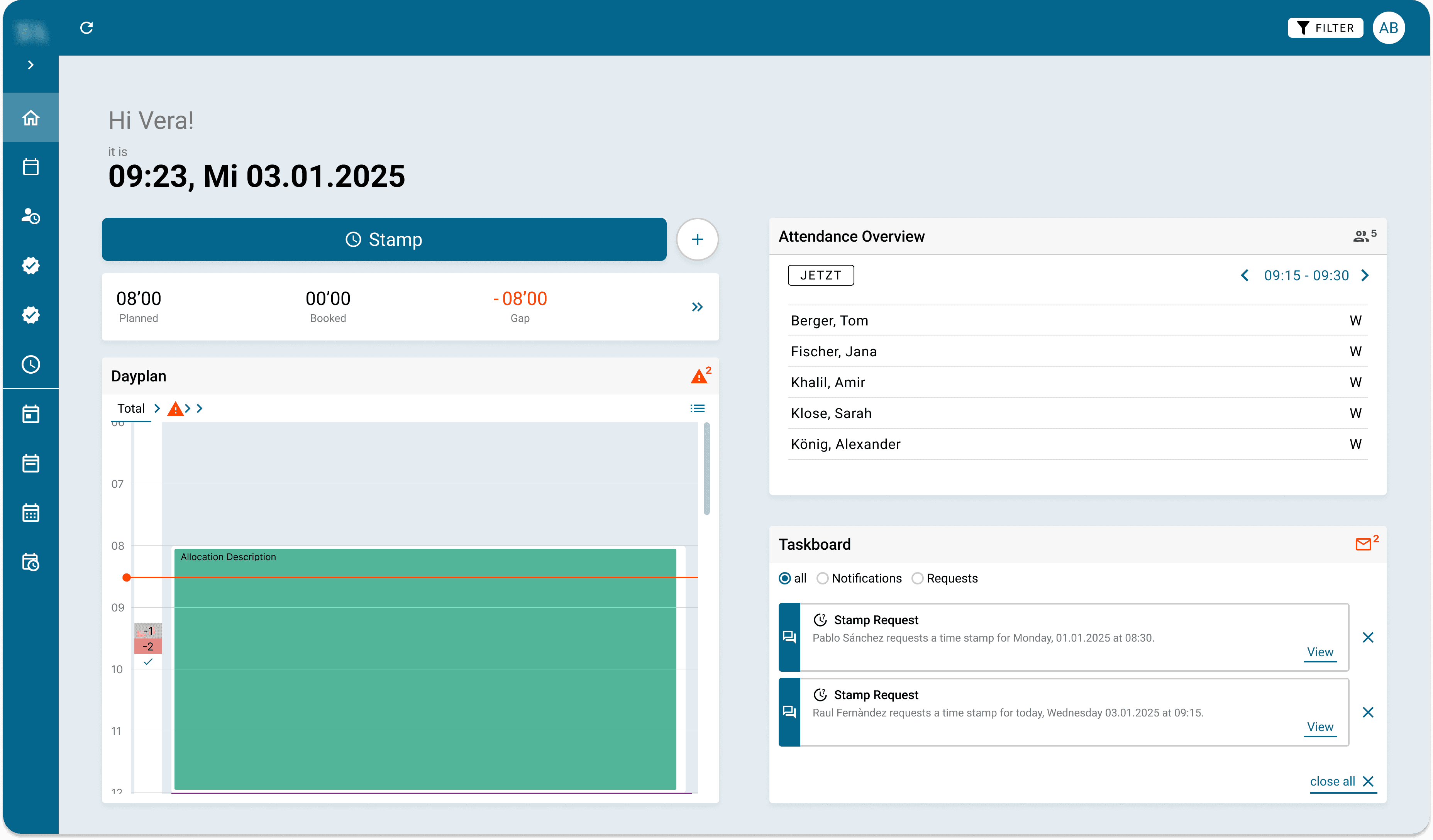
1 Time Tracking
Before
After
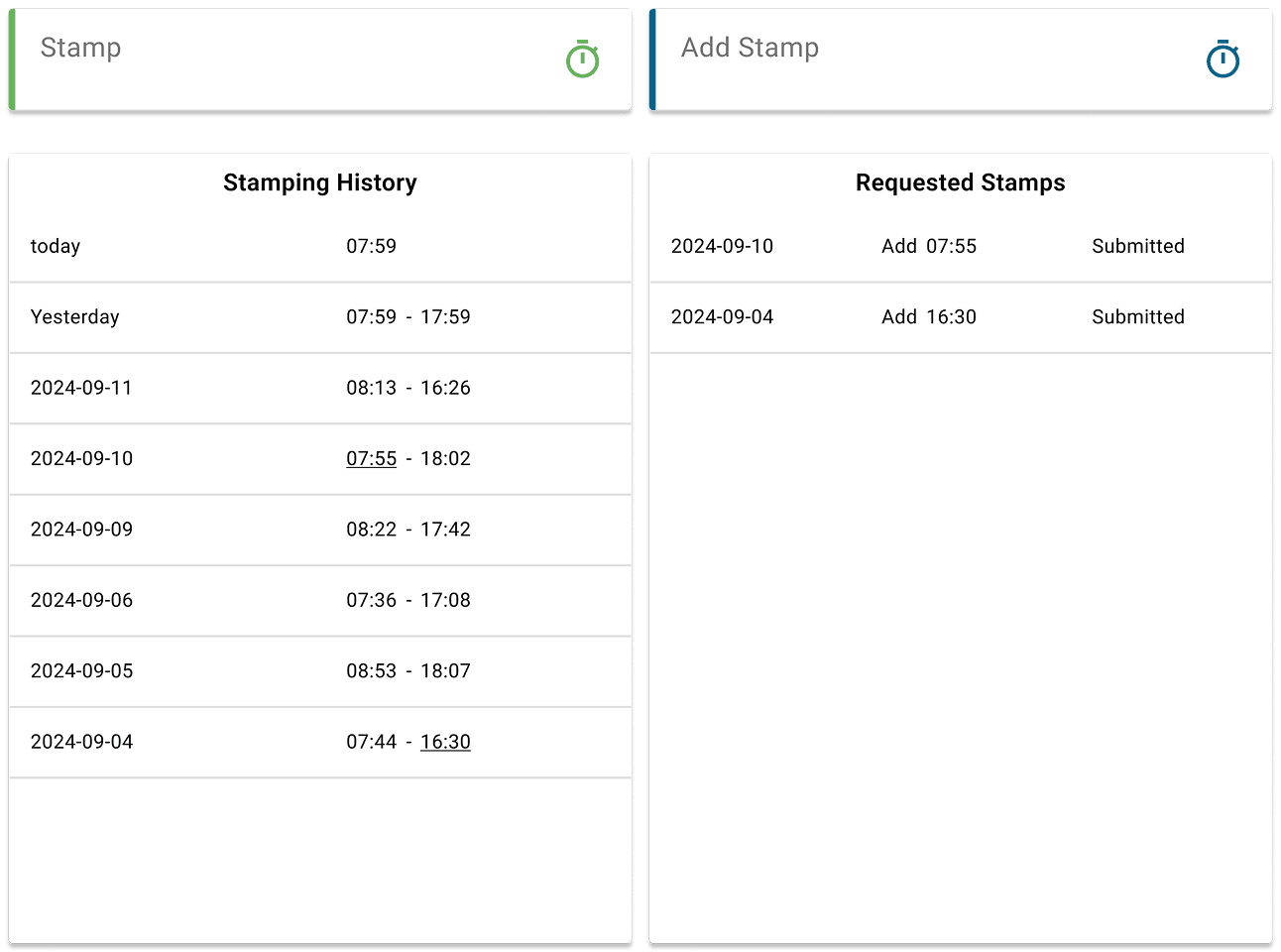
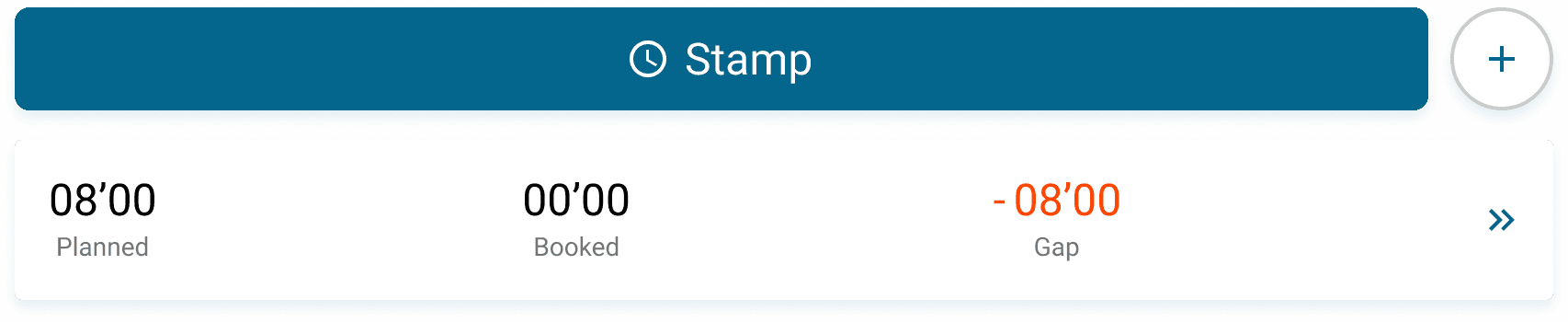
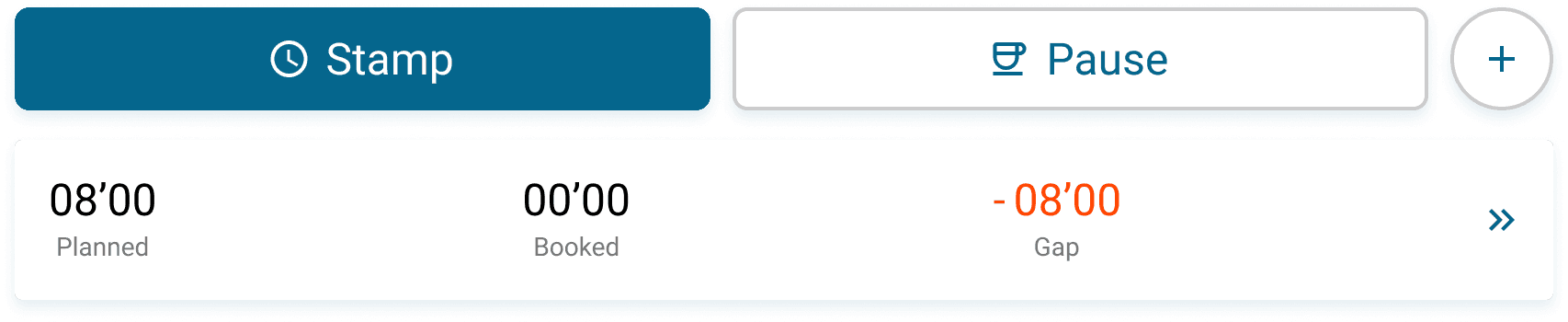
1 Time Tracking
Slide 1/3
1
Law of Proximity
Consolidation of Time Tracking Interactions for improved task completion
2
Alignment with User Behavior
Reflecting real employee workflows by clearly distinguishing between shift start, shift end, and breaks
3
Visual Hierarchy
Establishing a clear hierarchy for highlighting clocking in and out as the main user task
1
2
3
Employee
hierarchical
1 Time Tracking
Slide 2/3
4
5
4
Visualizing Work Progress
Work progress is displayed in real time, allowing users to instantly understand their status. The users key metric is highlighted.
5
Repositioning of Stamp Lists
Supporting a cleaner information architecture and avoiding redundant views by link to “My Bookings” with stamp lists
1 Time Tracking
Slide 3/3
6
Adaptation to Project Requirements
The planned distinction between shift start/end and breaks was postponed after alignment with the PO, as the feature did not yet exist and would have exceeded the project scope.
6
2 Internal Daily View
After
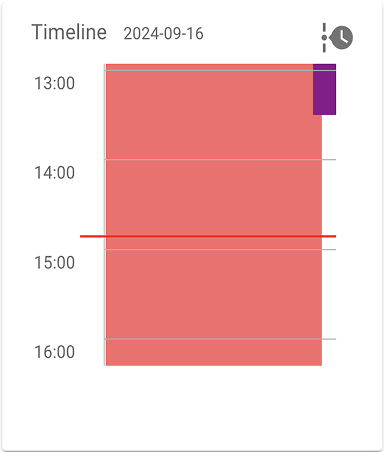
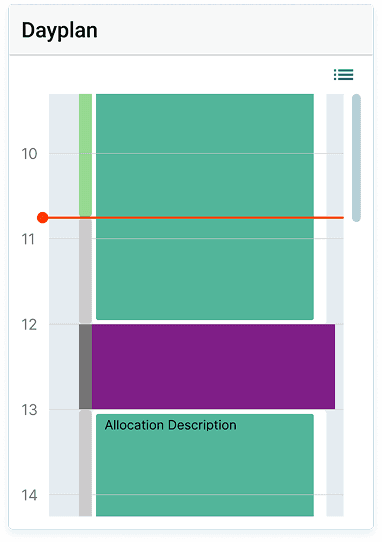
Before
2 Internal Daily View
Slide 1/4
Employee
hierarchical4
1
Contrast-Colored Now Bar
Usage of consistent contrast color to maintain a unified and clear signaling color system
3
Addition of "Booking" Bar
Repetitive display of timeline from page "My Bookings" supports user understanding and reinforces link to time-tracking metrics
4
Retaining Existing Shift Display
The existing shift display is part of a complex, system-wide pattern. Redesigning it would have exceeded the project scope and is better addressed in a separate initiative
2
Optimized Time-Interval Display
Time intervals were visually softened to direct attention toward the content and reduce mental load
1
2
3
2 Internal Daily View
Slide 2/4
Employee
hierarchical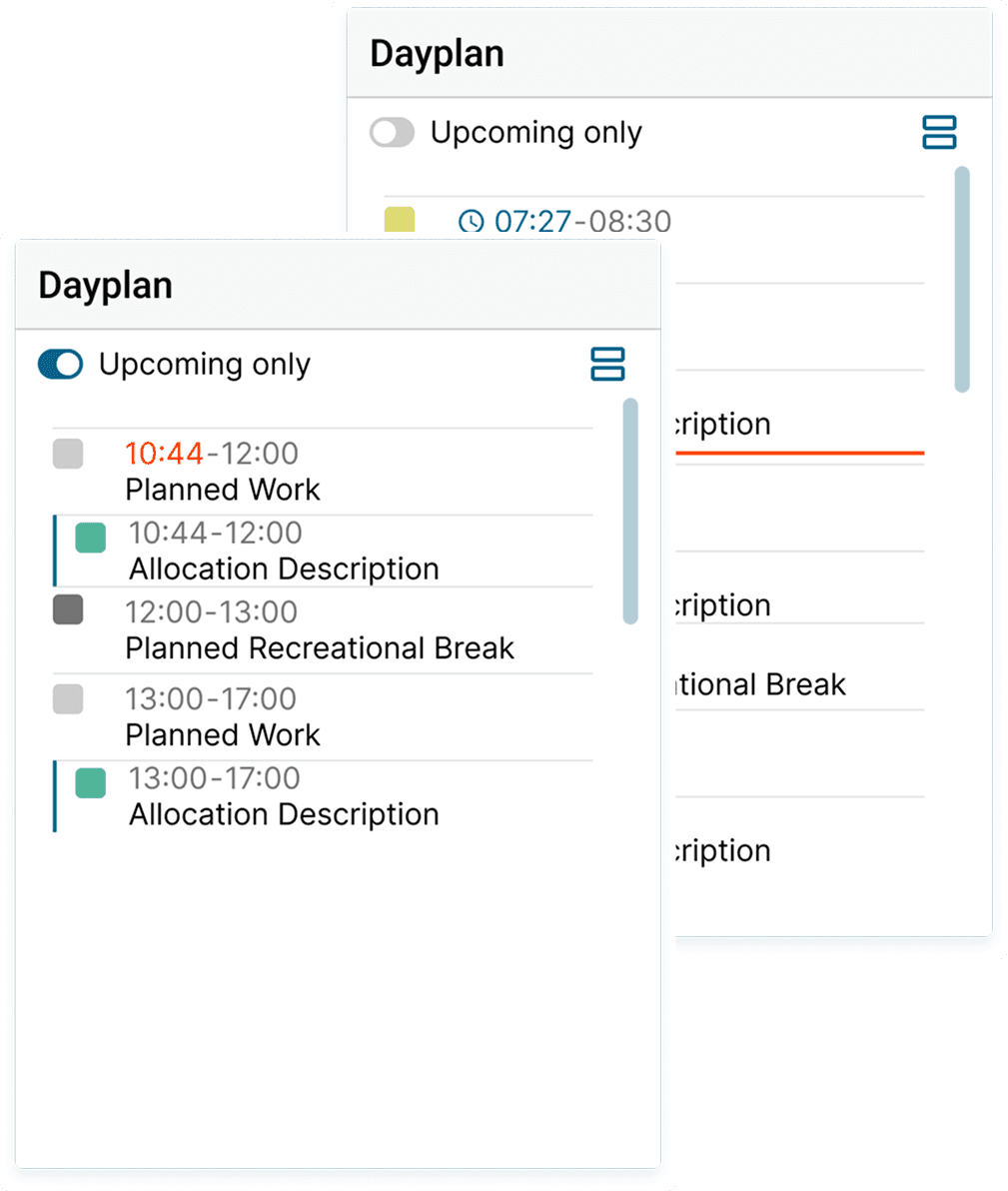
5
6
5
“Upcoming Only” Filter Option
Default of “Upcoming Only” setting focusses on the users most relevant information; disabling the filter allows flexible usage
6
List View
List view mirrors the familiar pattern from “My Bookings,” supporting user comprehension as well as aligning with accessibilty guidelines
5
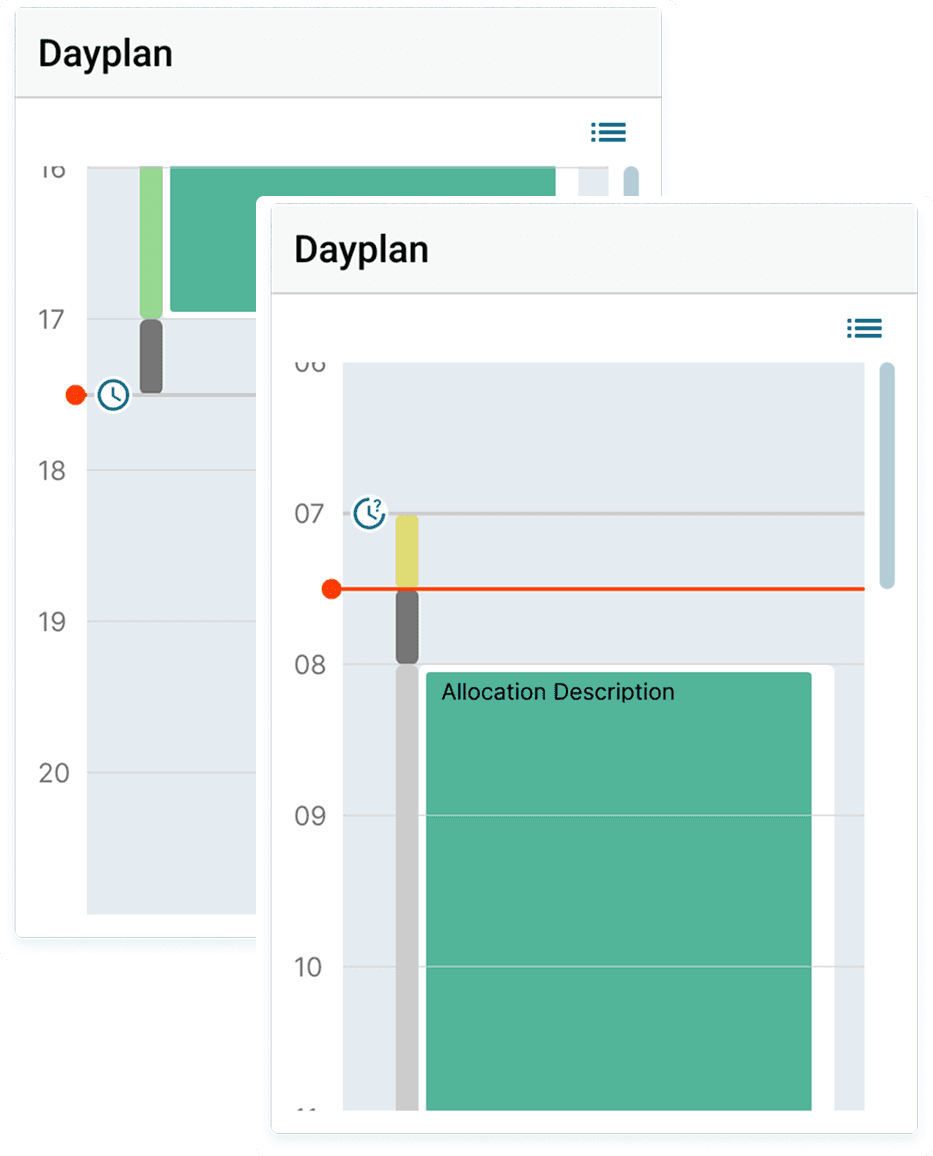
7
8
Guidance & Prompts
Stamping as the main task is supported through a prompt in the daily view, shown only before and after a shift to avoid unnecessary notifications
7
7
Stamp Activity
Completed stamp actions are shown as icons within the daily view, ensuring continuous visibility of system status
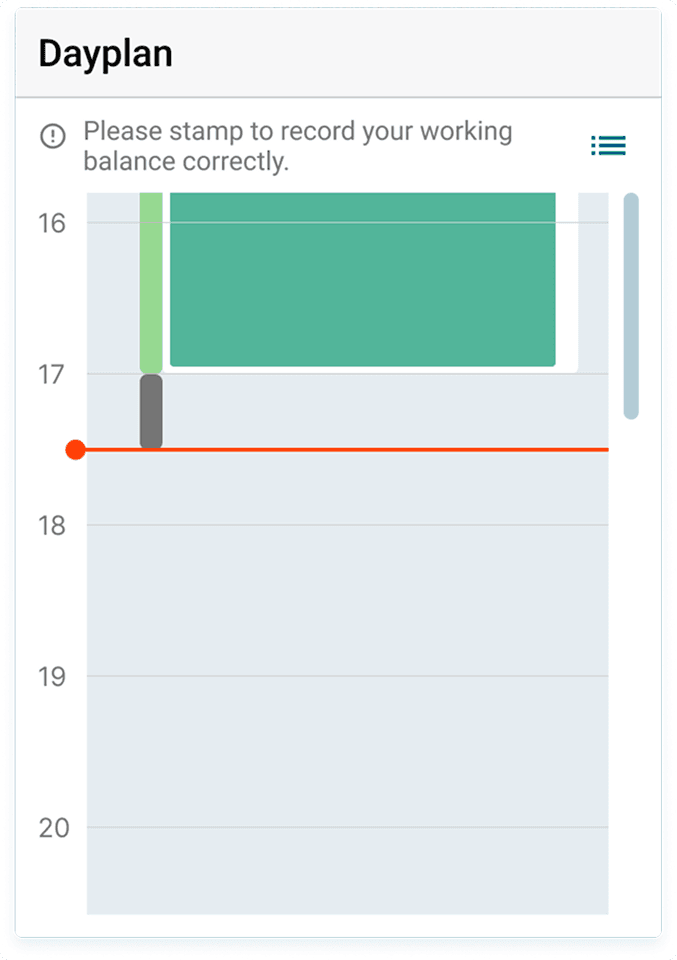
8
Employee
hierarchical2 Internal Daily View
Slide 3/4
2
Adding the Staffing Needs Indicator
Needs of autonomous shift planning are addressed by displaying staffing capacity directly within the daily view


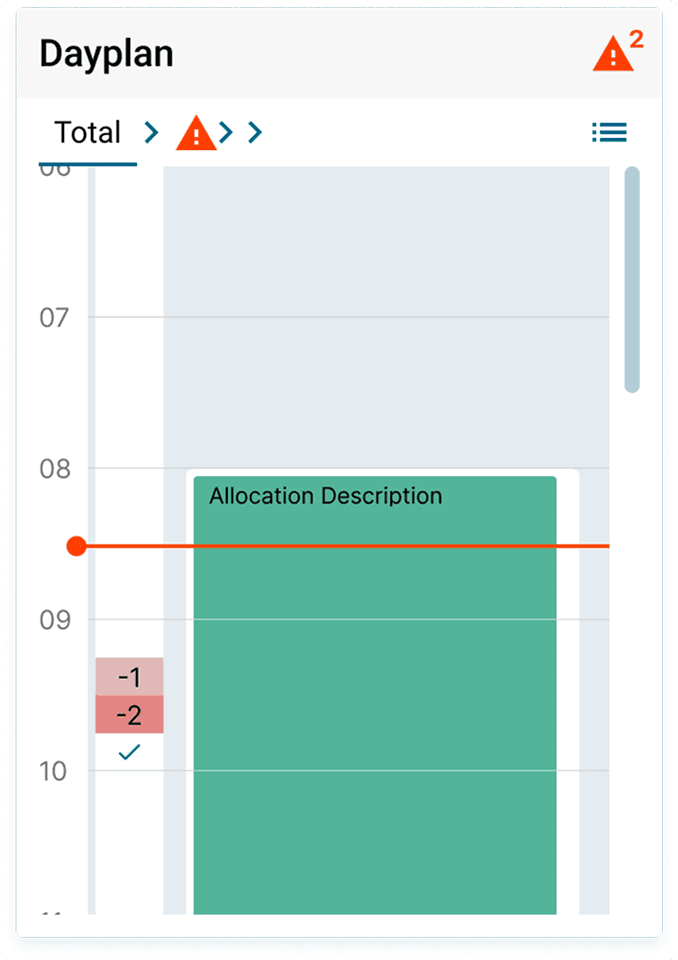
1
2
2 Internal Daily View
Slide 4/4
Employee/Teamlead
autonomous1
Identifying Staffing Imbalances
Warning icon immediately indicates which team is experiencing a staffing imbalance and requires attention
3
Future Outlook
Improved userflow opens opportunities for future business goals: users in autonomous shift planning (who currently don’t track time) may adopt the feature because of adaptibility to their needs
1
3
3 Taskboard
After
Before
3 Taskboard
Slide 1/2
all User Roles
2
2
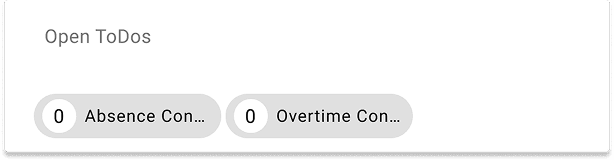
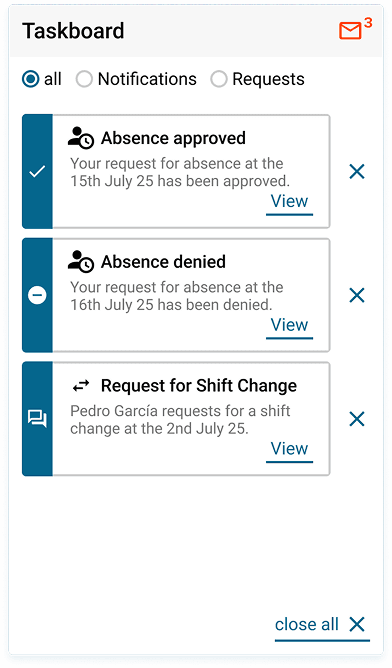
Assessing Workload
A task count helps users quickly assess required actions. Highlighting it in a contrast color ensures immediate visibility.
3
Clearing of Taskboard
A “Close all” button allows users to clear the task board with one click, reducing interaction effort while keeping all tasks accessible through their original system pages
1
Task Type Filter
Categorizing tasks into "Notifications" and "Requests" allows for a personalized view and helps reducing mentalload
1
3

The task board addresses a core system issue: instead of manually searching for information, users receive relevant content directly from the system, shortening workflows and increasing overall usefulness.
3 Taskboard
Slide 1/2
5
6
4
5
Task Location
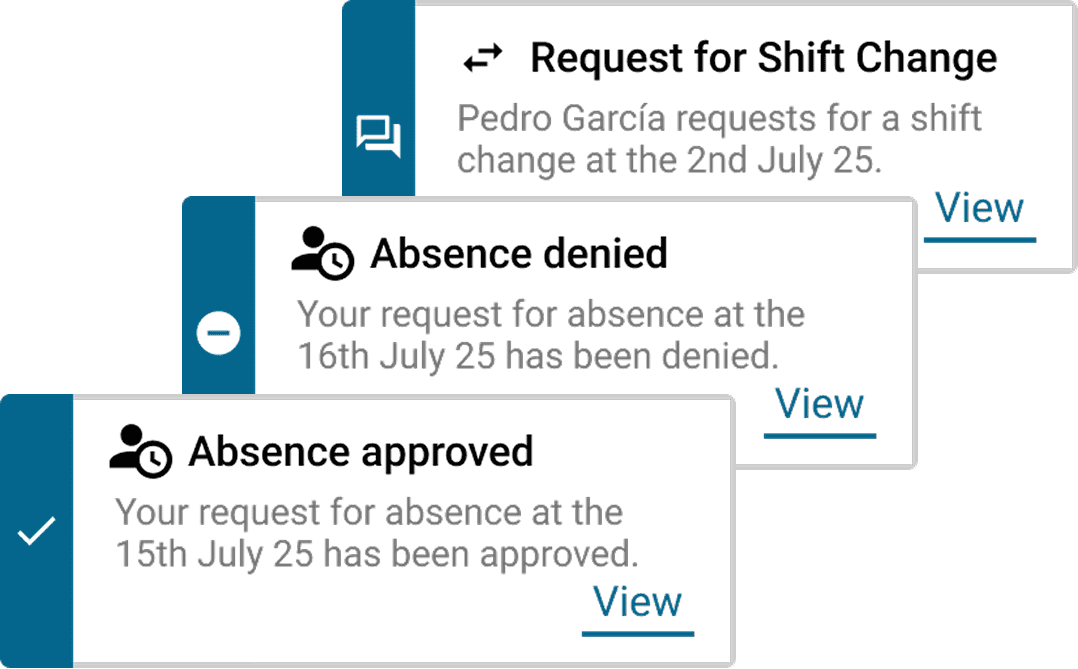
An icon in the task card title indicates where in the system the task resides and can be managed, improving orientation and supporting page architecture recognition.
6
Task Labelling
Clear and precise phrasing helps users understand the task content immediately and determine the appropriate next step
7
User-Centric Information
The task description clearly states what happened, enabling users to decide upfront whether action is required before navigating further.
8
Shortcut to Detail Page
The “View” button links directly to the relevant page, eliminating navigation through multiple screens and significantly reducing time per task.
4
Task Type
Tasks are categorized into three types — confirmations, rejections, and requests — and are visually distinguished using clear icons for instant recognition
8
7
4 Attendance Overview
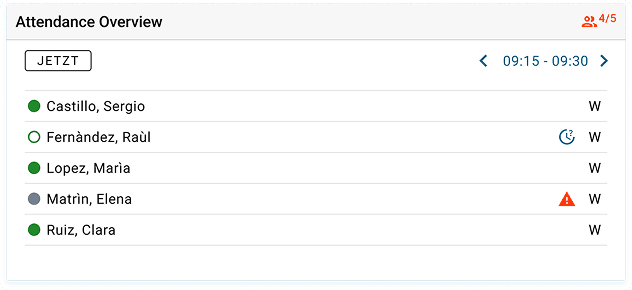
An entirely new element for the needs of teamleads to see attendance of teammembers in specific timeintervalls.
New!
4 Attendance Overview
Slide 1/2
2
Identifying Critical Staffing Gaps
Attendance for ongoing shifts is displayed clearly, with imbalances highlighted in a complementary color. All counts always reflect the current time interval.
1
Use of Existing Design Patterns
This module builds on the familiar visual patterns of the frequently used “Daily Plan” and was enhanced to clearly communicate the “here and now.”
2
1
Teamlead
hierarchical, autonomous4 Attendance Overview
Slide 1/2
3
Time Interval Navigation
Team leads can easily navigate to nearby future or past intervals, supporting faster and more accurate role-specific decision-making.
4
Interval-Based Attendance Listing
Only employees scheduled for the selected interval are shown. Familiar color codes indicate attendance status, enabling quick detection of issues while reducing unnecessary information and mentalload.
5
Direct Actions & Clear Indicators of Required Intervention
Team leads can take immediate action within the module — for example, approving or rejecting an attendance request. Complementary-color warning icons clearly highlight missing employees.
5
3
Before
After
1 Time Tracking
Before
After
1 Time Tracking
Slide 1/3
1
Law of Proximity
Consolidation of Time Tracking Interactions for improved task completion
2
Alignment with User Behavior
Reflecting real employee workflows by clearly distinguishing between shift start, shift end, and breaks
3
Visual Hierarchy
Establishing a clear hierarchy for highlighting clocking in and out as the main user task
1
2
3
Employee
hierarchical1 Time Tracking
Slide 2/3
4
5
4
Visualizing Work Progress
Work progress is displayed in real time, allowing users to instantly understand their status. The users key metric is highlighted.
5
Repositioning of Stamp Lists
Supporting a cleaner information architecture and avoiding redundant views by link to “My Bookings” with stamp lists
1 Time Tracking
Slide 3/3
6
Adaptation to Project Requirements
The planned distinction between shift start/end and breaks was postponed after alignment with the PO, as the feature did not yet exist and would have exceeded the project scope.
6
2 Internal Daily View
After
Before
2 Internal Daily View
Slide 1/4
Employee
hierarchical4
1
Contrast-Colored Now Bar
Usage of consistent contrast color to maintain a unified and clear signaling color system
3
Addition of "Booking" Bar
Repetitive display of timeline from page "My Bookings" supports user understanding and reinforces link to time-tracking metrics
4
Retaining Existing Shift Display
The existing shift display is part of a complex, system-wide pattern. Redesigning it would have exceeded the project scope and is better addressed in a separate initiative
2
Optimized Time-Interval Display
Time intervals were visually softened to direct attention toward the content and reduce mental load
1
2
3
2 Internal Daily View
Slide 2/4
Employee
hierarchical5
6
5
“Upcoming Only” Filter Option
Default of “Upcoming Only” setting focusses on the users most relevant information; disabling the filter allows flexible usage
6
List View
List view mirrors the familiar pattern from “My Bookings,” supporting user comprehension as well as aligning with accessibilty guidelines
5
7
8
Guidance & Prompts
Stamping as the main task is supported through a prompt in the daily view, shown only before and after a shift to avoid unnecessary notifications
7
7
Stamp Activity
Completed stamp actions are shown as icons within the daily view, ensuring continuous visibility of system status
8
Employee
hierarchical2 Internal Daily View
Slide 3/4
2
Adding the Staffing Needs Indicator
Needs of autonomous shift planning are addressed by displaying staffing capacity directly within the daily view
1
2
2 Internal Daily View
Slide 4/4
Employee/Teamlead
autonomous1
Identifying Staffing Imbalances
Warning icon immediately indicates which team is experiencing a staffing imbalance and requires attention
3
Future Outlook
Improved userflow opens opportunities for future business goals: users in autonomous shift planning (who currently don’t track time) may adopt the feature because of adaptibility to their needs
1
3
3 Taskboard
After
Before
3 Taskboard
Slide 1/2
all User Roles
2
2
Assessing Workload
A task count helps users quickly assess required actions. Highlighting it in a contrast color ensures immediate visibility.
3
Clearing of Taskboard
A “Close all” button allows users to clear the task board with one click, reducing interaction effort while keeping all tasks accessible through their original system pages
1
Task Type Filter
Categorizing tasks into "Notifications" and "Requests" allows for a personalized view and helps reducing mentalload
1
3
The task board addresses a core system issue: instead of manually searching for information, users receive relevant content directly from the system, shortening workflows and increasing overall usefulness.
3 Taskboard
Slide 1/2
5
6
4
5
Task Location
An icon in the task card title indicates where in the system the task resides and can be managed, improving orientation and supporting page architecture recognition.
6
Task Labelling
Clear and precise phrasing helps users understand the task content immediately and determine the appropriate next step
7
User-Centric Information
The task description clearly states what happened, enabling users to decide upfront whether action is required before navigating further.
8
Shortcut to Detail Page
The “View” button links directly to the relevant page, eliminating navigation through multiple screens and significantly reducing time per task.
4
Task Type
Tasks are categorized into three types — confirmations, rejections, and requests — and are visually distinguished using clear icons for instant recognition
8
7
4 Attendance Overview
An entirely new element for the needs of teamleads to see attendance of teammembers in specific timeintervalls.
New!
4 Attendance Overview
Slide 1/2
2
Identifying Critical Staffing Gaps
Attendance for ongoing shifts is displayed clearly, with imbalances highlighted in a complementary color. All counts always reflect the current time interval.
1
Use of Existing Design Patterns
This module builds on the familiar visual patterns of the frequently used “Daily Plan” and was enhanced to clearly communicate the “here and now.”
2
1
Teamlead
hierarchical, autonomous4 Attendance Overview
Slide 1/2
3
Time Interval Navigation
Team leads can easily navigate to nearby future or past intervals, supporting faster and more accurate role-specific decision-making.
4
Interval-Based Attendance Listing
Only employees scheduled for the selected interval are shown. Familiar color codes indicate attendance status, enabling quick detection of issues while reducing unnecessary information and mentalload.
5
Direct Actions & Clear Indicators of Required Intervention
Team leads can take immediate action within the module — for example, approving or rejecting an attendance request. Complementary-color warning icons clearly highlight missing employees.
5
3
Before
After
1 Time Tracking
Before
After
1 Time Tracking
Slide 1/3
1
Law of Proximity
Consolidation of Time Tracking Interactions for improved task completion
2
Alignment with User Behavior
Reflecting real employee workflows by clearly distinguishing between shift start, shift end, and breaks
3
Visual Hierarchy
Establishing a clear hierarchy for highlighting clocking in and out as the main user task
1
2
3
Employee
hierarchical1 Time Tracking
Slide 2/3
4
5
4
Visualizing Work Progress
Work progress is displayed in real time, allowing users to instantly understand their status. The users key metric is highlighted.
5
Repositioning of Stamp Lists
Supporting a cleaner information architecture and avoiding redundant views by link to “My Bookings” with stamp lists
1 Time Tracking
Slide 3/3
6
Adaptation to Project Requirements
The planned distinction between shift start/end and breaks was postponed after alignment with the PO, as the feature did not yet exist and would have exceeded the project scope.
6
2 Internal Daily View
After
Before
2 Internal Daily View
Slide 1/4
Employee
hierarchical4
1
Contrast-Colored Now Bar
Usage of consistent contrast color to maintain a unified and clear signaling color system
3
Addition of "Booking" Bar
Repetitive display of timeline from page "My Bookings" supports user understanding and reinforces link to time-tracking metrics
4
Retaining Existing Shift Display
The existing shift display is part of a complex, system-wide pattern. Redesigning it would have exceeded the project scope and is better addressed in a separate initiative
2
Optimized Time-Interval Display
Time intervals were visually softened to direct attention toward the content and reduce mental load
1
2
3
2 Internal Daily View
Slide 2/4
Employee
hierarchical5
6
5
“Upcoming Only” Filter Option
Default of “Upcoming Only” setting focusses on the users most relevant information; disabling the filter allows flexible usage
6
List View
List view mirrors the familiar pattern from “My Bookings,” supporting user comprehension as well as aligning with accessibilty guidelines
5
7
8
Guidance & Prompts
Stamping as the main task is supported through a prompt in the daily view, shown only before and after a shift to avoid unnecessary notifications
7
7
Stamp Activity
Completed stamp actions are shown as icons within the daily view, ensuring continuous visibility of system status
8
Employee
hierarchical2 Internal Daily View
Slide 3/4
2
Adding the Staffing Needs Indicator
Needs of autonomous shift planning are addressed by displaying staffing capacity directly within the daily view
1
2
2 Internal Daily View
Slide 4/4
Employee/Teamlead
autonomous1
Identifying Staffing Imbalances
Warning icon immediately indicates which team is experiencing a staffing imbalance and requires attention
3
Future Outlook
Improved userflow opens opportunities for future business goals: users in autonomous shift planning (who currently don’t track time) may adopt the feature because of adaptibility to their needs
1
3
3 Taskboard
After
Before
3 Taskboard
Slide 1/2
all User Roles
2
2
Assessing Workload
A task count helps users quickly assess required actions. Highlighting it in a contrast color ensures immediate visibility.
3
Clearing of Taskboard
A “Close all” button allows users to clear the task board with one click, reducing interaction effort while keeping all tasks accessible through their original system pages
1
Task Type Filter
Categorizing tasks into "Notifications" and "Requests" allows for a personalized view and helps reducing mentalload
1
3
The task board addresses a core system issue: instead of manually searching for information, users receive relevant content directly from the system, shortening workflows and increasing overall usefulness.
3 Taskboard
Slide 1/2
5
6
4
5
Task Location
An icon in the task card title indicates where in the system the task resides and can be managed, improving orientation and supporting page architecture recognition.
6
Task Labelling
Clear and precise phrasing helps users understand the task content immediately and determine the appropriate next step
7
User-Centric Information
The task description clearly states what happened, enabling users to decide upfront whether action is required before navigating further.
8
Shortcut to Detail Page
The “View” button links directly to the relevant page, eliminating navigation through multiple screens and significantly reducing time per task.
4
Task Type
Tasks are categorized into three types — confirmations, rejections, and requests — and are visually distinguished using clear icons for instant recognition
8
7
4 Attendance Overview
An entirely new element for the needs of teamleads to see attendance of teammembers in specific timeintervalls.
New!
4 Attendance Overview
Slide 1/2
2
Identifying Critical Staffing Gaps
Attendance for ongoing shifts is displayed clearly, with imbalances highlighted in a complementary color. All counts always reflect the current time interval.
1
Use of Existing Design Patterns
This module builds on the familiar visual patterns of the frequently used “Daily Plan” and was enhanced to clearly communicate the “here and now.”
2
1
Teamlead
hierarchical, autonomous4 Attendance Overview
Slide 1/2
3
Time Interval Navigation
Team leads can easily navigate to nearby future or past intervals, supporting faster and more accurate role-specific decision-making.
4
Interval-Based Attendance Listing
Only employees scheduled for the selected interval are shown. Familiar color codes indicate attendance status, enabling quick detection of issues while reducing unnecessary information and mentalload.
5
Direct Actions & Clear Indicators of Required Intervention
Team leads can take immediate action within the module — for example, approving or rejecting an attendance request. Complementary-color warning icons clearly highlight missing employees.
5
3
Before
After
1 Time Tracking
Before
After
1 Time Tracking
Slide 1/3
1
Law of Proximity
Consolidation of Time Tracking Interactions for improved task completion
2
Alignment with User Behavior
Reflecting real employee workflows by clearly distinguishing between shift start, shift end, and breaks
3
Visual Hierarchy
Establishing a clear hierarchy for highlighting clocking in and out as the main user task
1
2
3
Employee
hierarchical1 Time Tracking
Slide 2/3
4
5
4
Visualizing Work Progress
Work progress is displayed in real time, allowing users to instantly understand their status. The users key metric is highlighted.
5
Repositioning of Stamp Lists
Supporting a cleaner information architecture and avoiding redundant views by link to “My Bookings” with stamp lists
1 Time Tracking
Slide 3/3
6
Adaptation to Project Requirements
The planned distinction between shift start/end and breaks was postponed after alignment with the PO, as the feature did not yet exist and would have exceeded the project scope.
6
2 Internal Daily View
After
Before
2 Internal Daily View
Slide 1/4
Employee
hierarchical4
1
Contrast-Colored Now Bar
Usage of consistent contrast color to maintain a unified and clear signaling color system
3
Addition of "Booking" Bar
Repetitive display of timeline from page "My Bookings" supports user understanding and reinforces link to time-tracking metrics
4
Retaining Existing Shift Display
The existing shift display is part of a complex, system-wide pattern. Redesigning it would have exceeded the project scope and is better addressed in a separate initiative
2
Optimized Time-Interval Display
Time intervals were visually softened to direct attention toward the content and reduce mental load
1
2
3
2 Internal Daily View
Slide 2/4
Employee
hierarchical5
6
5
“Upcoming Only” Filter Option
Default of “Upcoming Only” setting focusses on the users most relevant information; disabling the filter allows flexible usage
6
List View
List view mirrors the familiar pattern from “My Bookings,” supporting user comprehension as well as aligning with accessibilty guidelines
5
7
8
Guidance & Prompts
Stamping as the main task is supported through a prompt in the daily view, shown only before and after a shift to avoid unnecessary notifications
7
7
Stamp Activity
Completed stamp actions are shown as icons within the daily view, ensuring continuous visibility of system status
8
Employee
hierarchical2 Internal Daily View
Slide 3/4
2
Adding the Staffing Needs Indicator
Needs of autonomous shift planning are addressed by displaying staffing capacity directly within the daily view
1
2
2 Internal Daily View
Slide 4/4
Employee/Teamlead
autonomous1
Identifying Staffing Imbalances
Warning icon immediately indicates which team is experiencing a staffing imbalance and requires attention
3
Future Outlook
Improved userflow opens opportunities for future business goals: users in autonomous shift planning (who currently don’t track time) may adopt the feature because of adaptibility to their needs
1
3
3 Taskboard
After
Before
3 Taskboard
Slide 1/2
all User Roles
2
2
Assessing Workload
A task count helps users quickly assess required actions. Highlighting it in a contrast color ensures immediate visibility.
3
Clearing of Taskboard
A “Close all” button allows users to clear the task board with one click, reducing interaction effort while keeping all tasks accessible through their original system pages
1
Task Type Filter
Categorizing tasks into "Notifications" and "Requests" allows for a personalized view and helps reducing mentalload
1
3
The task board addresses a core system issue: instead of manually searching for information, users receive relevant content directly from the system, shortening workflows and increasing overall usefulness.
3 Taskboard
Slide 1/2
5
6
4
5
Task Location
An icon in the task card title indicates where in the system the task resides and can be managed, improving orientation and supporting page architecture recognition.
6
Task Labelling
Clear and precise phrasing helps users understand the task content immediately and determine the appropriate next step
7
User-Centric Information
The task description clearly states what happened, enabling users to decide upfront whether action is required before navigating further.
8
Shortcut to Detail Page
The “View” button links directly to the relevant page, eliminating navigation through multiple screens and significantly reducing time per task.
4
Task Type
Tasks are categorized into three types — confirmations, rejections, and requests — and are visually distinguished using clear icons for instant recognition
8
7
4 Attendance Overview
An entirely new element for the needs of teamleads to see attendance of teammembers in specific timeintervalls.
New!
4 Attendance Overview
Slide 1/2
2
Identifying Critical Staffing Gaps
Attendance for ongoing shifts is displayed clearly, with imbalances highlighted in a complementary color. All counts always reflect the current time interval.
1
Use of Existing Design Patterns
This module builds on the familiar visual patterns of the frequently used “Daily Plan” and was enhanced to clearly communicate the “here and now.”
2
1
Teamlead
hierarchical, autonomous4 Attendance Overview
Slide 1/2
3
Time Interval Navigation
Team leads can easily navigate to nearby future or past intervals, supporting faster and more accurate role-specific decision-making.
4
Interval-Based Attendance Listing
Only employees scheduled for the selected interval are shown. Familiar color codes indicate attendance status, enabling quick detection of issues while reducing unnecessary information and mentalload.
5
Direct Actions & Clear Indicators of Required Intervention
Team leads can take immediate action within the module — for example, approving or rejecting an attendance request. Complementary-color warning icons clearly highlight missing employees.
5
3
REsponsiveness
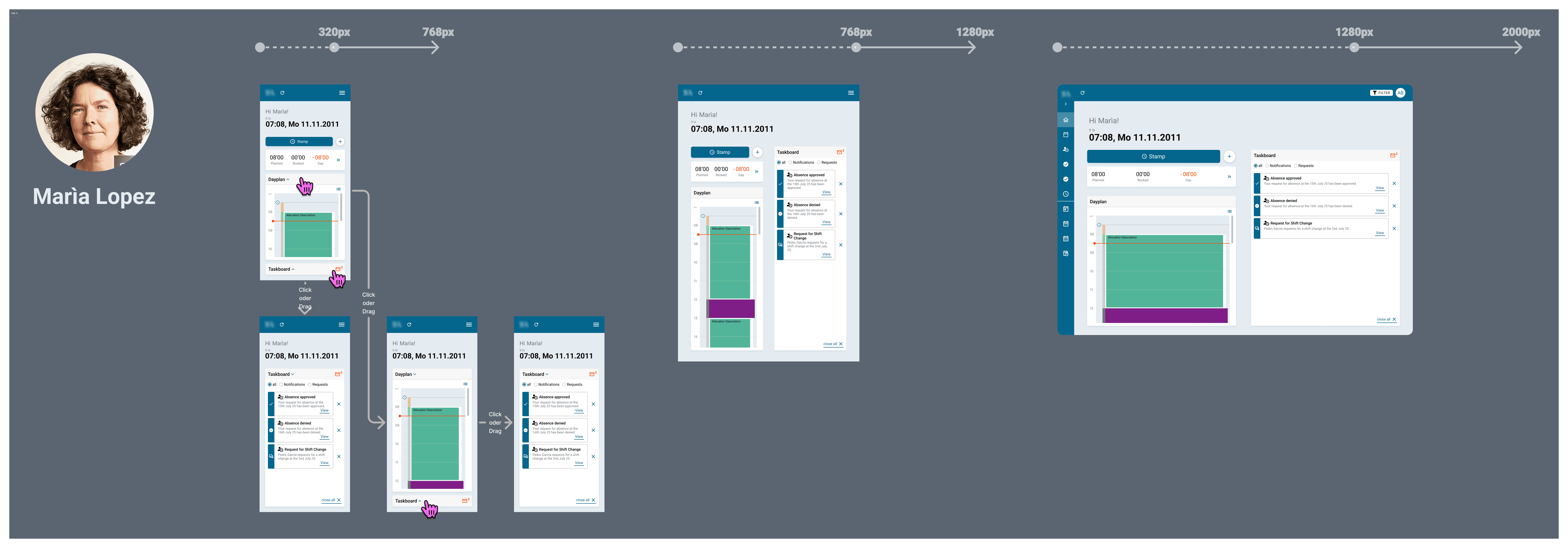
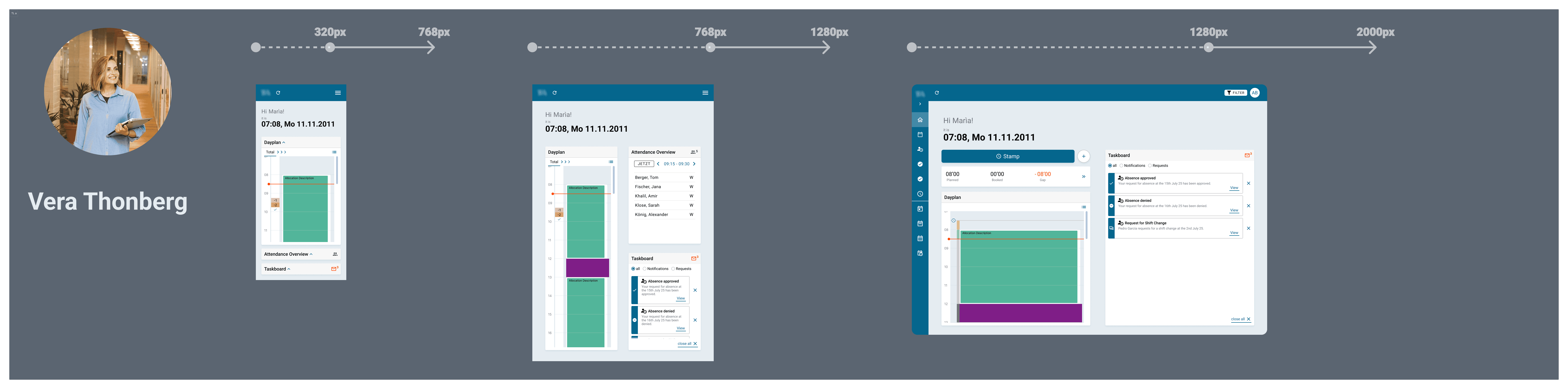
The new dashboard concept was developed with a strong focus on responsiveness. Since the existing system contained many points of friction and errors in this area, a truly responsive dashboard would directly improve overall usability.
For the final submission, I focused on unambiguous, straightforward presentations — regardless of potential software features — because transferring Figma designs into the product had previously been a common source of errors.
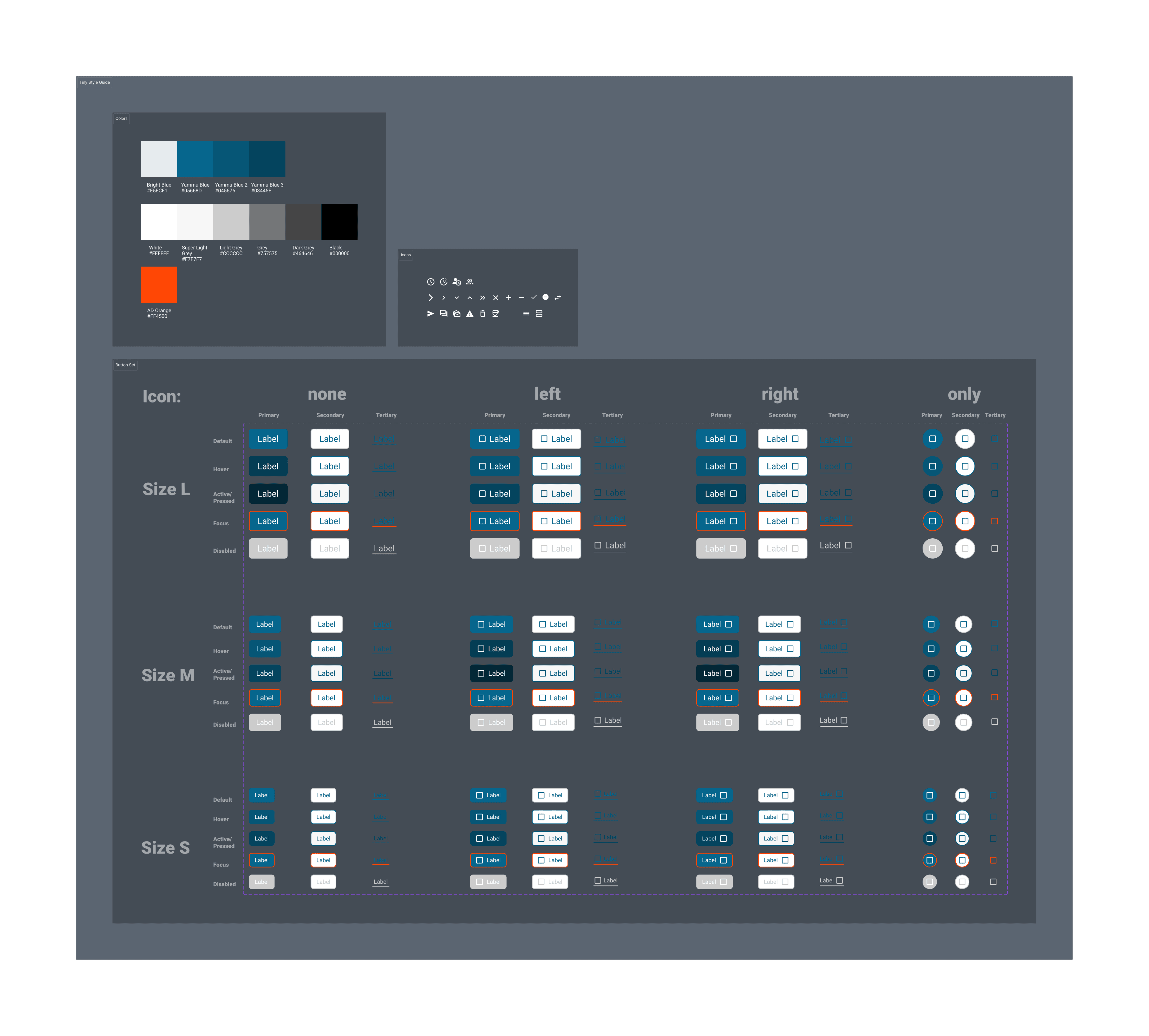
Tiny style sheet
With this project—my first opportunity to make intentional decisions about the user interface concept—I created the foundation for a style sheet. It consisted of core UI building blocks such as:
Color Sheme
Icon Library (initially project-specific)
Button Component (hierarchy, states, device variants)
The goal was to establish the fundamentals for consistent design implementation and to build a design system that could evolve with each new project and redesign.